So you have a GoPro camera, probably an older one, and for some reason you can’t rename them when connecting them to the Quik app anymore. Don’t fret, here’s the precise way on how to get it done.
(Credit to https://github.com/KonradIT/gpauto but his instructions aren’t complete)
Go to your Connect screen on your GoPro, and get to the Name and Password entry. I only know the Hero 5 Black, but it’s under Connect, Camera Information, Name and Password.
Record the password you have there. For this example, let’s say it’s: snow4231
Pull out the SD card, or get one which has already been in a GoPro camera, and has its folder structure. (DCIM, MISC)
Put that SD card into your computer so you can write files to it.
Download and install Notepad ++ if you don’t have it already. If you don’t, why the hell not?
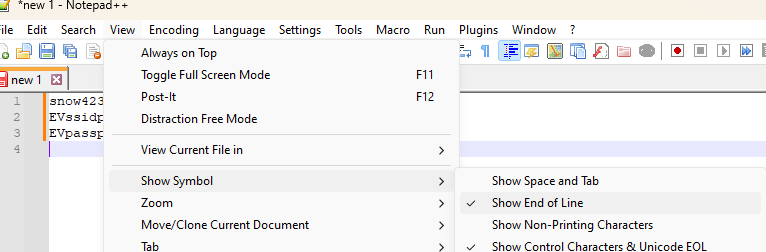
Open Notepad++ and immediately set the following menu item under View/Show Symbol/Show End of Line
Create a new blank file.
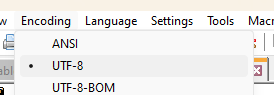
Under Encoding, set the type as UTF-8, like so:
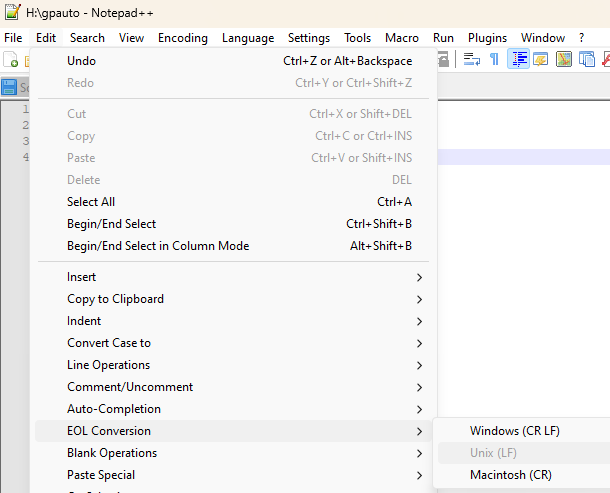
Under Edit, EOL Conversion, select Unix (LF).
Now, write in the following file, this format:
snow4231
EVssidprimary,MyNewGoProName
EVpassphrase,snow4231
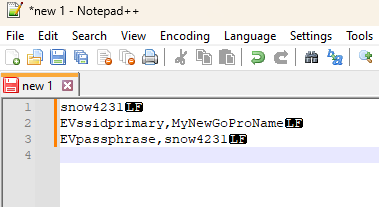
Now, pay attention to the following items:
First, the password on the first line matches the camera’s password exactly.
Second, the black-background-characters at the end show LF only. Not CR LF.
Third, the password at the end of the file matches the password at the beginning of the file.
Fourth, there is a black-backgrounded-character LF at the end of every line.
Fifth, you have changed “MyNewGoProName” to whatever it is you want there.
IMPORTANT: There MUST be an LF at the end of every line. If there isn’t, the GoPro may lose a character on the wifi password–and then it won’t connect, and you’ll have to reset all connections and start over.
Now, Save this file, but pay attention–you don’t want it to have a file extension when you’re done.
Give it the name gpauto with no spaces, capitals, or other changes. Lowercase only.
Deselect Append Extension at the bottom right, near the Save button.
If needed, change Save As Type to All Types (*.*)
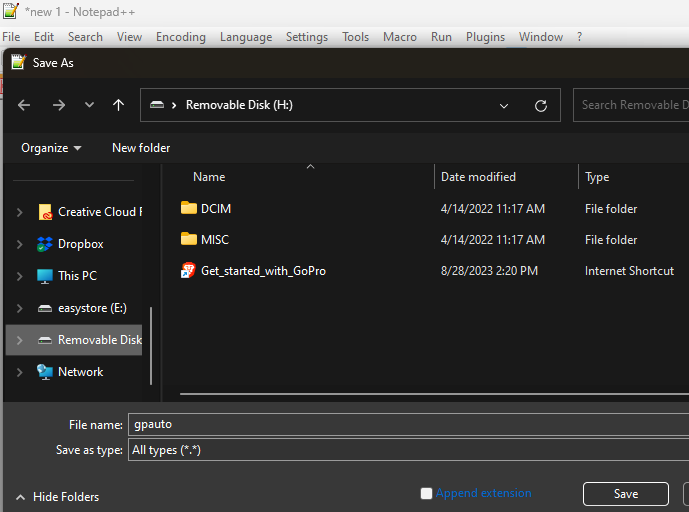
Save the file in the root of the memory card. It should be outside any folders (DCIM, MISC).
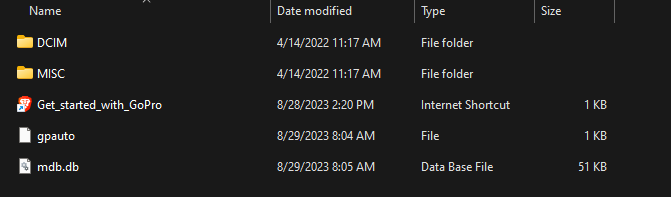
Go check the file in the File Browser. It should look like this:
Remove the SD card and put it into your GoPro, then do these steps more than once:
- Plug in a battery.
- Power on the GoPro.
- Check the GoPro Name.
If the GoPro does not have its name changed on the first try, remove the battery. Try steps 1-3 again. You can try up to three times. In summation, what should happen in this order is:
The GoPro is on, with an SD card inserted before it powered on.
The GoPro has its battery removed with the SD card inserted.
The GoPro has a battery inserted with the same SD card inserted.
The GoPro is powered on.
If for some reason this doesn’t work, check that file again. It should look precisely like mine, except that the password will match what’s in your camera, the EVssidprimary line has your desired name, and the EVpassphrase has the original camera password which matches the first line. Check your end line terminators. Each line should have an LF at the end.
When you are successful, the password will remain the same random string the GoPro created, and the Name will have changed. The camera will no longer be linked to the Quik app, so you need to relink it and delete any old cameras under the old random name.